Share your booking link
Your booking page’s address, a QR code to print, and Google: at the top of every screen.
This is the same guide as the “?” in Crewtide. Everything here is in the admin area: on a computer it’s the menu on the left, and on a phone it’s the menu button. The screenshots are from a demo business.
-
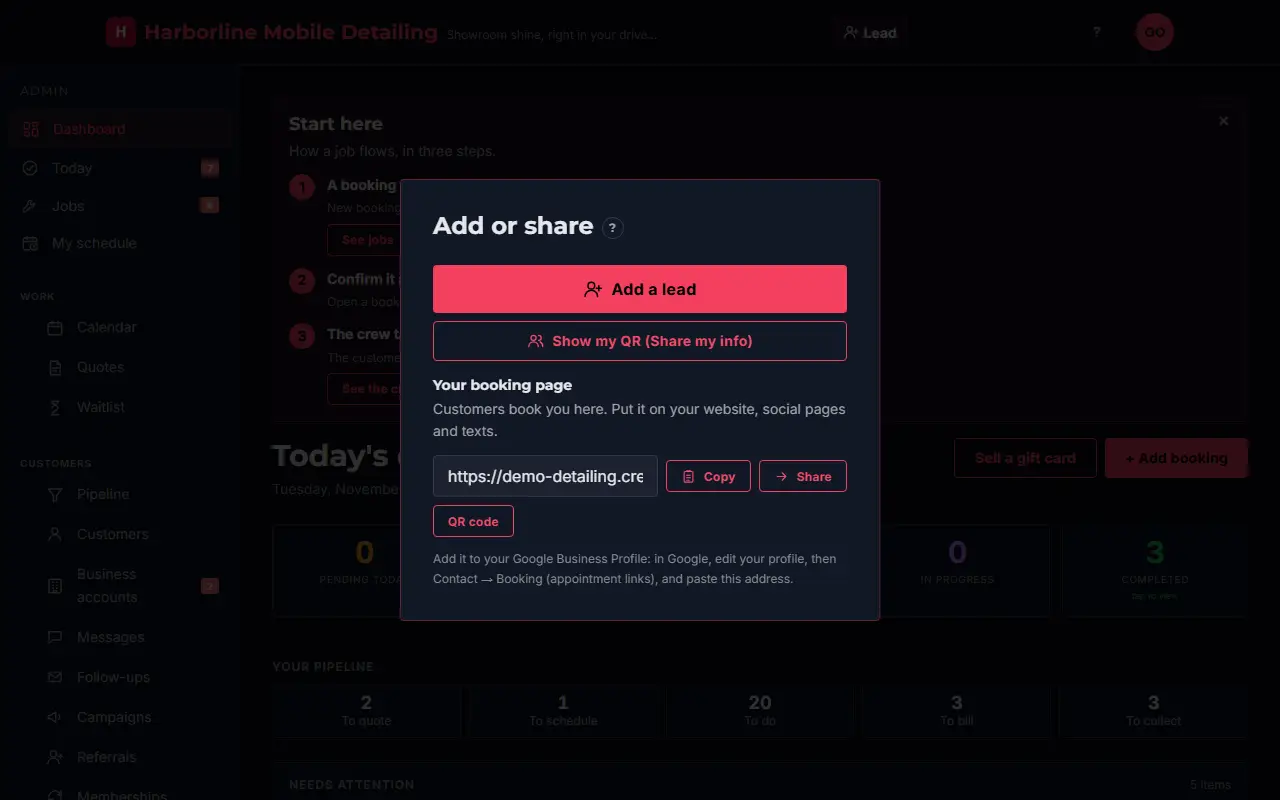
Tap “Lead” at the top of the screen (“Share” if you don’t use the Sales pipeline). In the “Get a booking” card, “Copy” the link, “Text / Share” it from your phone, or put it on your website, social pages and texts. “Book it yourself” opens a new booking for you to fill in. Everyone on your team has it there.
What you should see: “Booking link copied”.
-
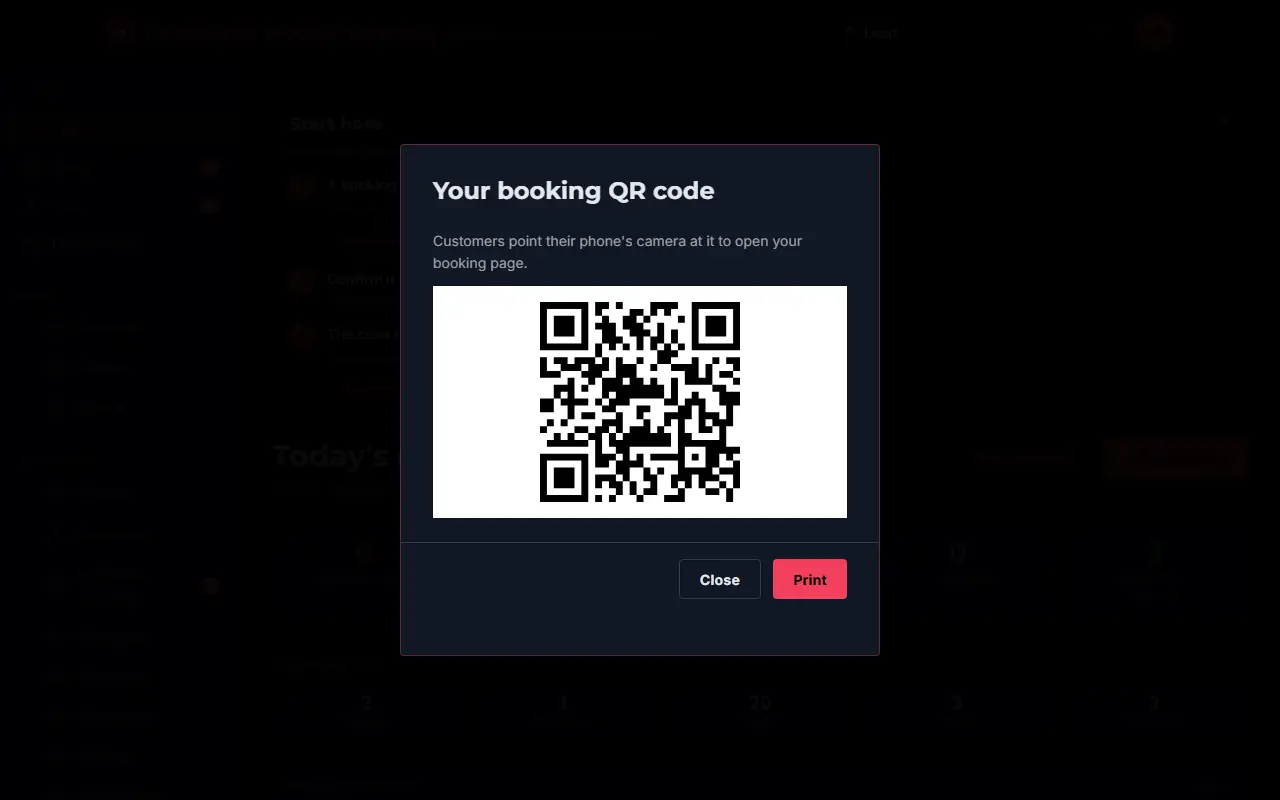
“QR code” opens it full screen with “Scan to book” in big letters, so the person in front of you knows what they’ll get; “Print” makes a sheet for your counter or van.
What you should see: “Scan to book”, your QR code and your business name.
-
On Google: edit your Business Profile, then Contact → Booking (appointment links), and paste the address. People can then book you straight from Google.
What you should see: A “Book” button on your Google profile.


Stuck? Email Crewtide Support at contact@crewtide.app, or use Help & Support in the app.
Next: Your booking agreement · All guides