Follow-ups and automatic reminders
The calls to make after a job, and the messages that go out on their own.
This is the same guide as the “?” in Crewtide. Everything here is in the admin area: on a computer it’s the menu on the left, and on a phone it’s the menu button. The screenshots are from a demo business.
-
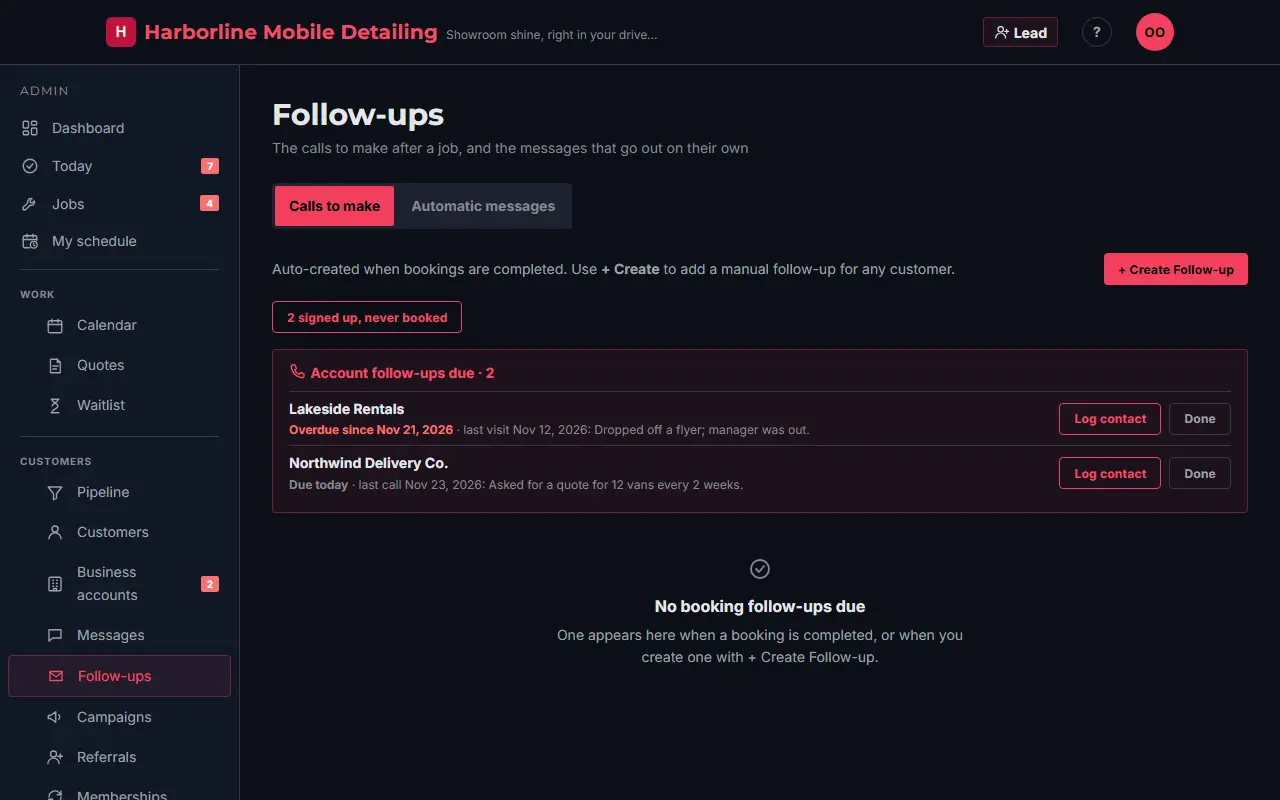
Follow-ups → “Calls to make”: who to call after a first visit, a review request, or someone you haven’t seen in a while, with the ones due first. Tap “Contacted” or “Booked”, or “+ Create Follow-up” for your own.
What you should see: Each call with when it’s due.
-
“Automatic messages”: the reminders and follow-ups that go out before or after an appointment. Change the words and tap “Save Changes”, pause one with its switch, or “+ Add message”.
What you should see: Each message marked Active or Paused, with a preview.
-
“Quiet hours for reminders” (off unless you turn it on): pick the hours with no reminders, say 9 PM to 6 AM, and the time to send them instead. A reminder that would land in those hours, like the one for a 4 AM job, goes the evening before at that time.
What you should see: The Quiet hours card above the messages, with its switch and three times.
-
A reminder or thank-you set to go by text goes by email instead, as long as the customer accepts email. Offers never switch to email.
What you should see: The email in the customer’s inbox.

Stuck? Email Crewtide Support at contact@crewtide.app, or use Help & Support in the app.