This is the same guide as the “?” in Crewtide. Everything here is in the admin area: on a computer it’s the menu on the left, and on a phone it’s the menu button. The screenshots are from a demo business.
-
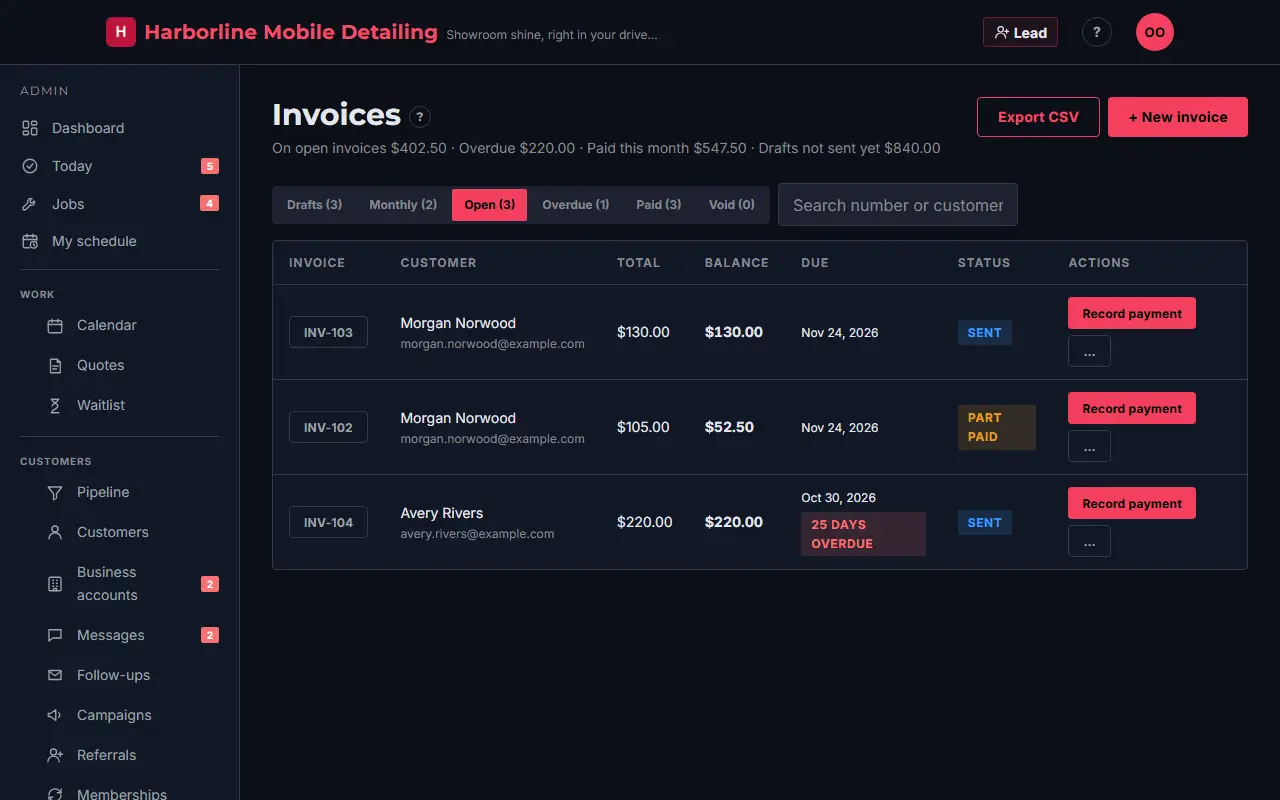
Invoices: Drafts, Open, Overdue and Paid. A finished job gets its invoice by itself (or a draft, as you chose).
What you should see: The totals at the top: on open invoices, overdue, paid this month.
-
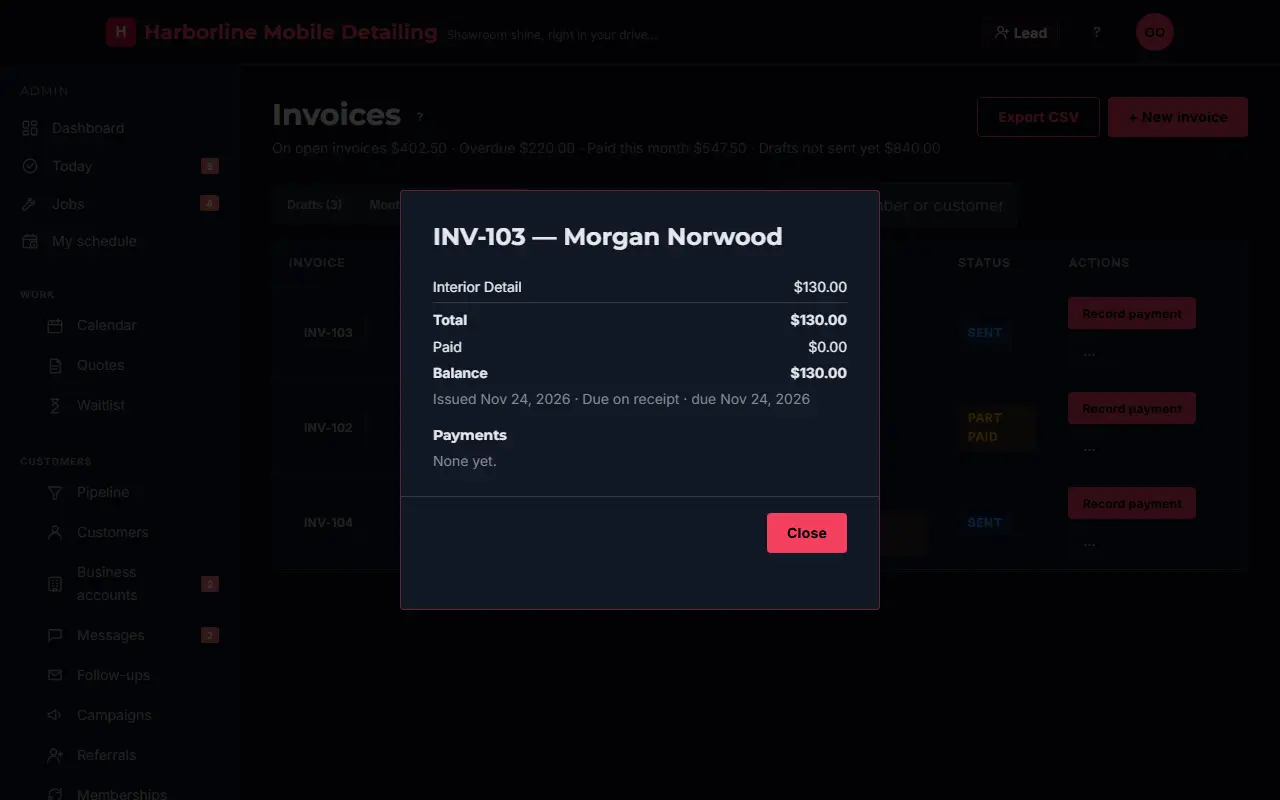
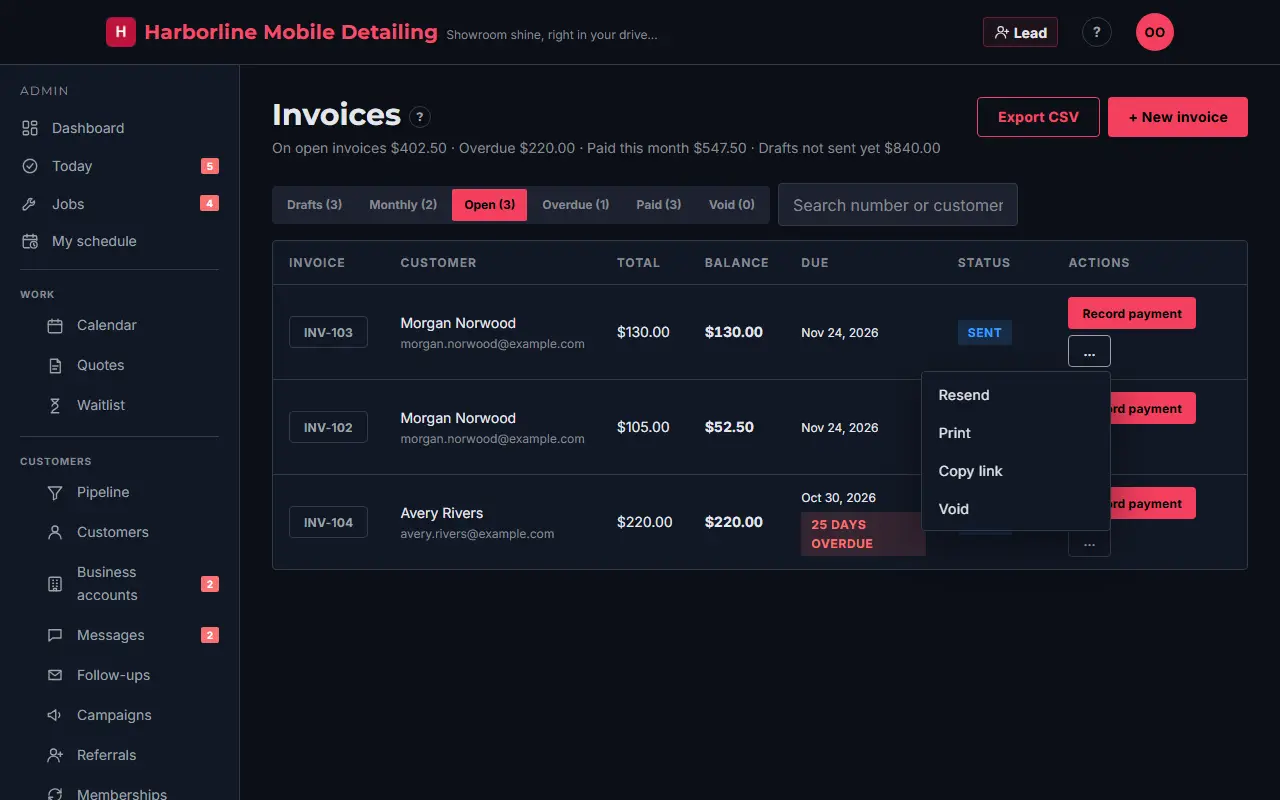
Open one to send it, print it, or “Record payment” for cash, a check, Zelle…
What you should see: The balance going down and the payment in its history.
-
A mistake? Undo a payment, refund, or void the invoice; each asks first.
What you should see: The change in the invoice’s history.


Stuck? Email Crewtide Support at contact@crewtide.app, or use Help & Support in the app.