Modules: just the parts you use
Switch parts of Crewtide on or off. Off hides them; nothing is deleted.
This is the same guide as the “?” in Crewtide. Everything here is in the admin area: on a computer it’s the menu on the left, and on a phone it’s the menu button. The screenshots are from a demo business.
-
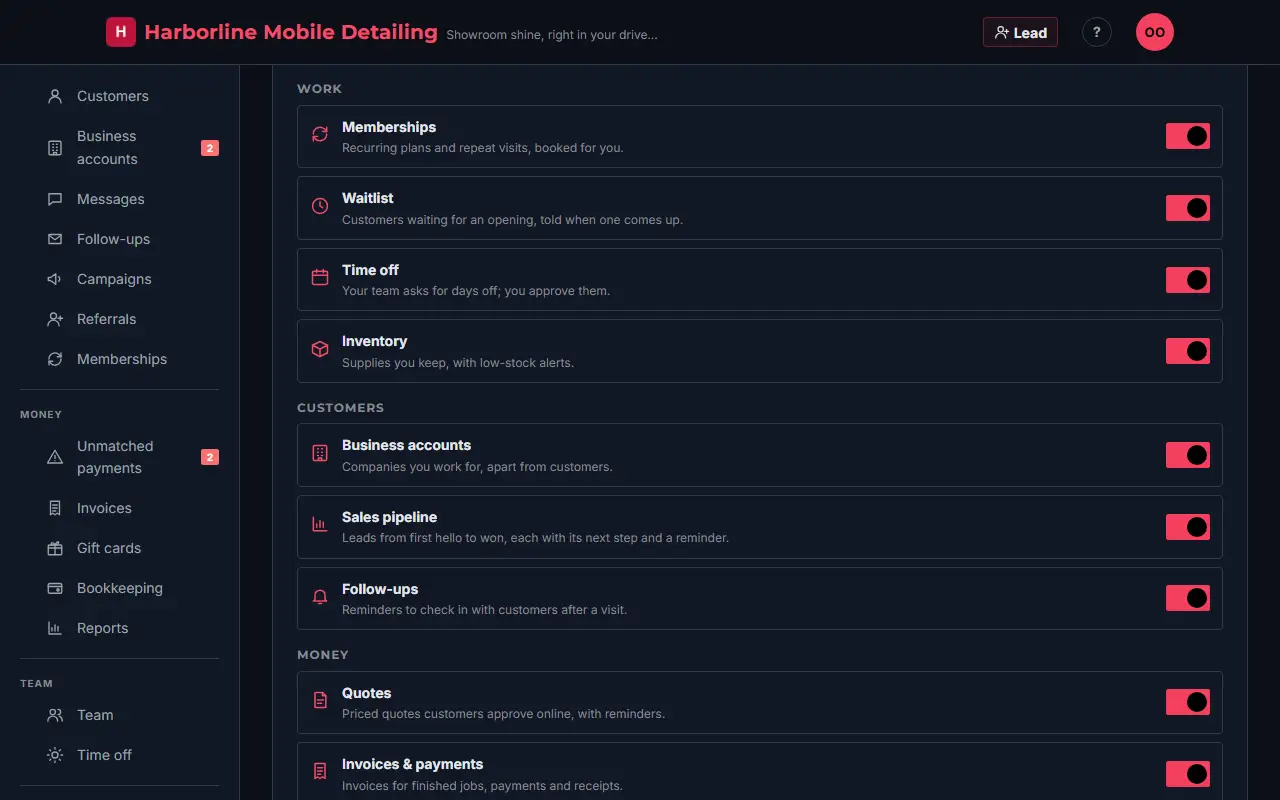
Settings → Modules lists the parts of Crewtide you can switch, grouped into Work, Customers, Money and Marketing. Dashboard, Jobs, Calendar, Customers, Services, Team, Settings, Reports, the audit log and Help & Support are always on.
What you should see: A switch next to each module, with one line on what it does.
-
Switch one off and it leaves your menu, your dashboard and your booking pages, and its reminders stop. Where something is still going on, it says so first (for Memberships with active members, it asks you to cancel or pause them first).
What you should see: “Switch … off?”, with what happens, and the red button to go ahead.
-
Switch it back on and everything is there as you left it. Rewards and Referrals start their program when you switch them on; their settings stay in Rewards & referrals.
What you should see: The module back in your menu.
-
Add-ons sit at the end. One on your account (or included with your plan) says so, and Rentals has its own switch, off until you turn it on. Others have “Ask about it”, which opens Help & Support.
What you should see: The Add-ons cards, each saying whether it’s on your account.
-
Crewtide has two parts: Services (booking jobs) and Rentals (renting out equipment). Your plan includes your trade’s; the other one is a card here with its monthly price. The owner taps “Add …”: with a plan already running, a panel shows exactly what’s charged today for the rest of this billing period, and it’s on once that goes through. Partners have both included.
What you should see: The card with its price and the Add button.
-
Once it’s on your plan, the card says “… is on your plan” with a Remove button (the owner only). The panel shows the credit Stripe gives for the rest of this billing period, taken off your next invoice. Its screens are hidden, but nothing is deleted: add it again and everything is there. Your plan’s own part can’t be removed this way; to stop paying, cancel in Manage billing.
What you should see: “Remove … from your plan?”, with Stripe’s credit and “Keep …”.

Stuck? Email Crewtide Support at contact@crewtide.app, or use Help & Support in the app.