This is the same guide as the “?” in Crewtide. Everything here is in the admin area: on a computer it’s the menu on the left, and on a phone it’s the menu button. The screenshots are from a demo business.
-
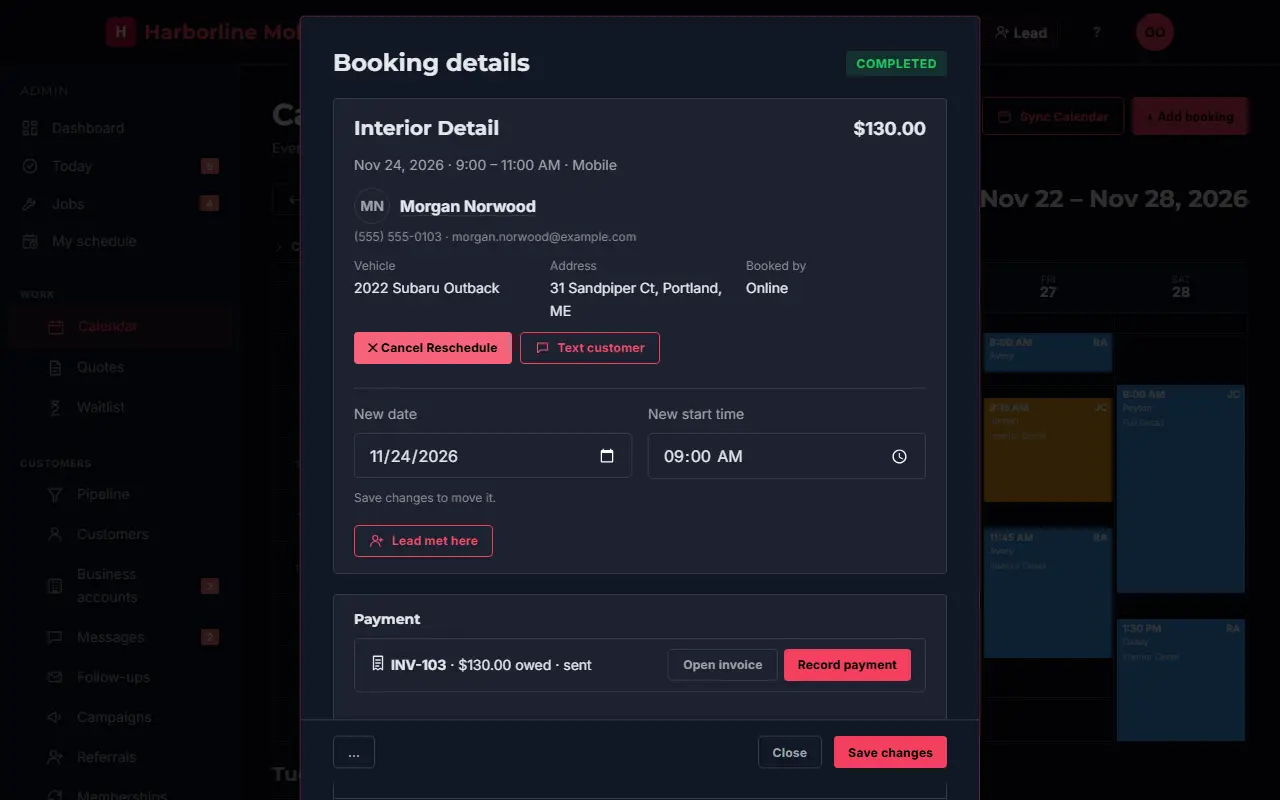
Open the booking and “Reschedule”. Pick the new date and time.
What you should see: “Tell the customer the new time” ticked.
-
To change who does it, tap names under “Assigned”. Someone taken off hears that; someone added gets the job.
What you should see: The new crew member highlighted.
-
Save. Or drag the booking to a new time on the calendar: it asks first, with the same “Tell the customer” box.
What you should see: “Saved · customer told the new time” (after a drag, “Moved to … · customer told”), and the calendar shows it at once.

Stuck? Email Crewtide Support at contact@crewtide.app, or use Help & Support in the app.
Next: A no-show · All guides