Quotes and offered times
Price a job, send it, and book it once the customer says yes.
This is the same guide as the “?” in Crewtide. Everything here is in the admin area: on a computer it’s the menu on the left, and on a phone it’s the menu button. The screenshots are from a demo business.
-
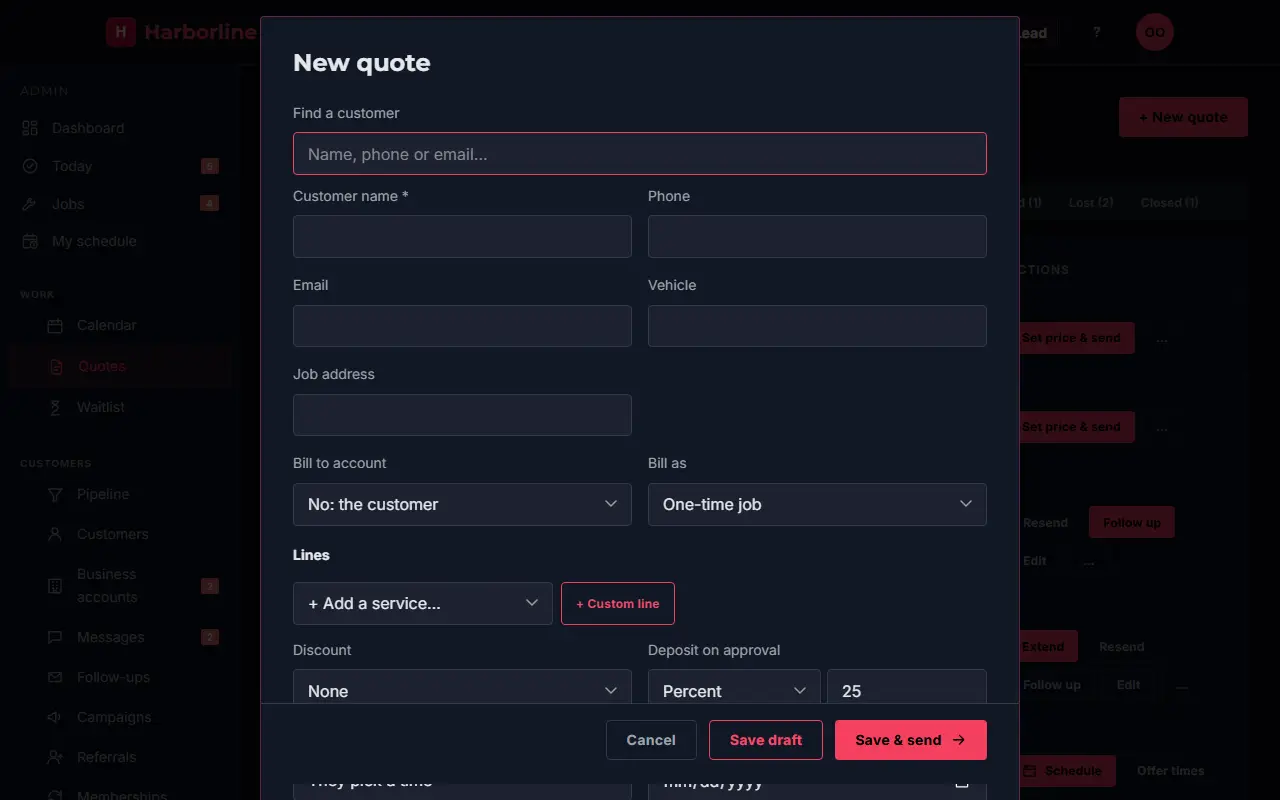
Quotes → “+ New quote”. Add services, optional extras the customer can tick, a discount and a deposit, and choose what happens after they approve: “They pick a time” or “We’ll schedule it with them”.
What you should see: The total working itself out as you add lines.
-
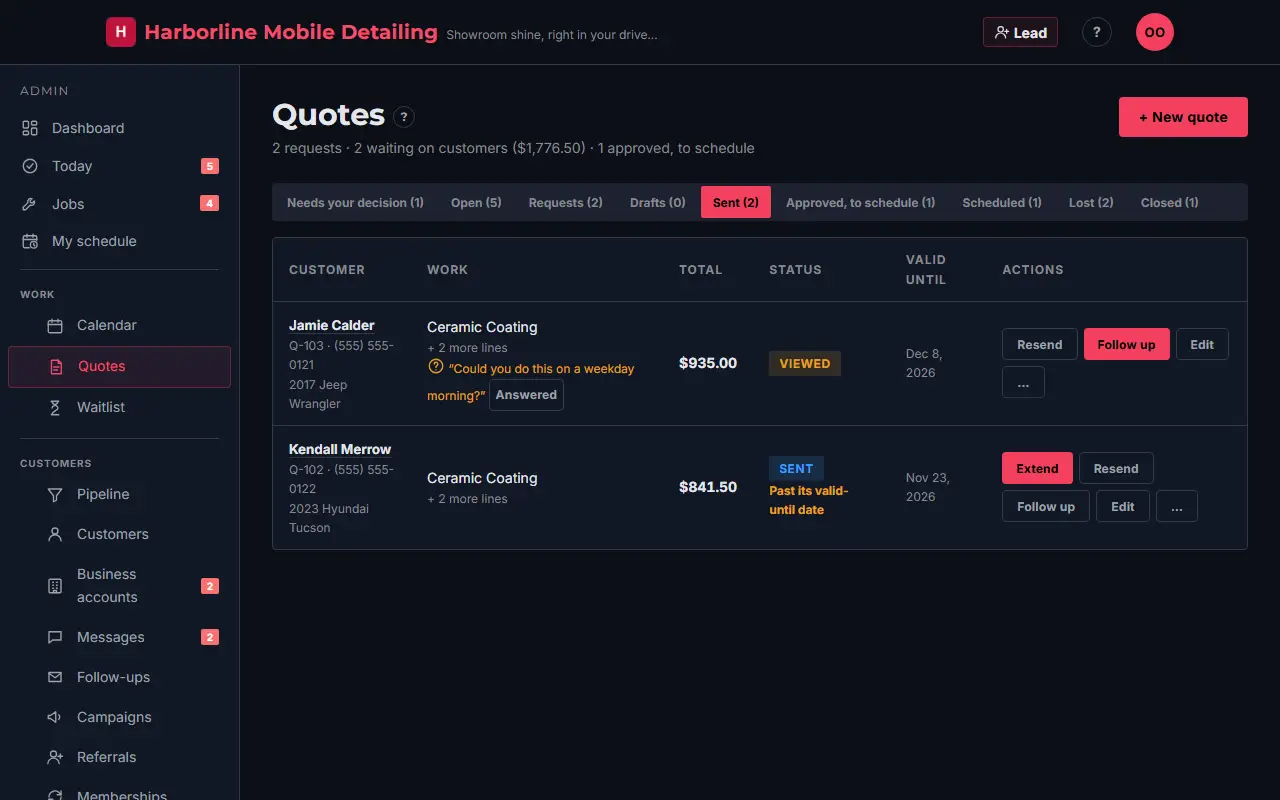
Send it. The customer gets a link by email.
What you should see: The quote “Sent”, then “Viewed” once they open it.
-
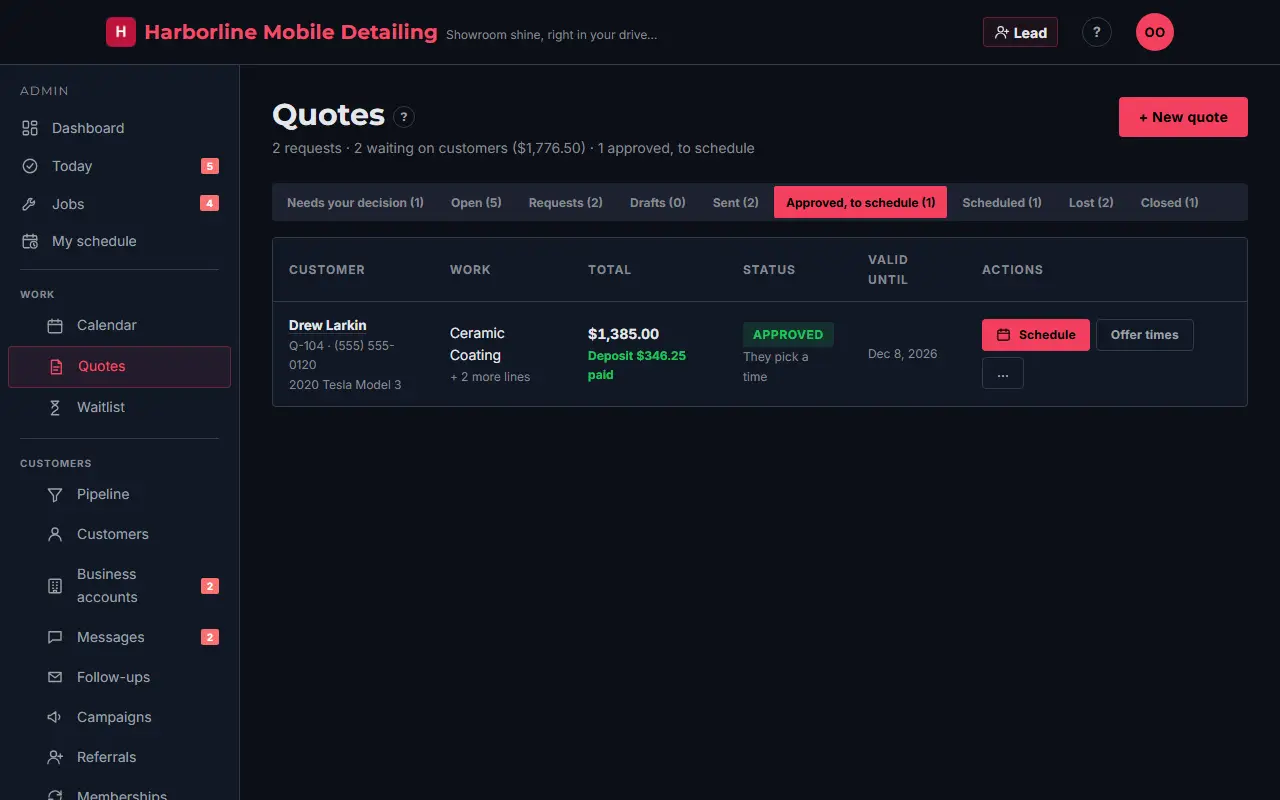
The customer approves on their phone: ticks extras, agrees to your terms, signs if you ask, and pays the deposit.
What you should see: The quote “Approved”, with the deposit recorded.
-
“Offer times” sends them up to 3 times to pick from; or “Schedule” to book it yourself. For a service whose length varies, enter the “Job length” on the quote (or when you offer times or schedule it): it’s blank until you do.
What you should see: The visit on the calendar once a time is picked.


Stuck? Email Crewtide Support at contact@crewtide.app, or use Help & Support in the app.