This is the same guide as the “?” in Crewtide. Everything here is in the admin area: on a computer it’s the menu on the left, and on a phone it’s the menu button. The screenshots are from a demo business.
-
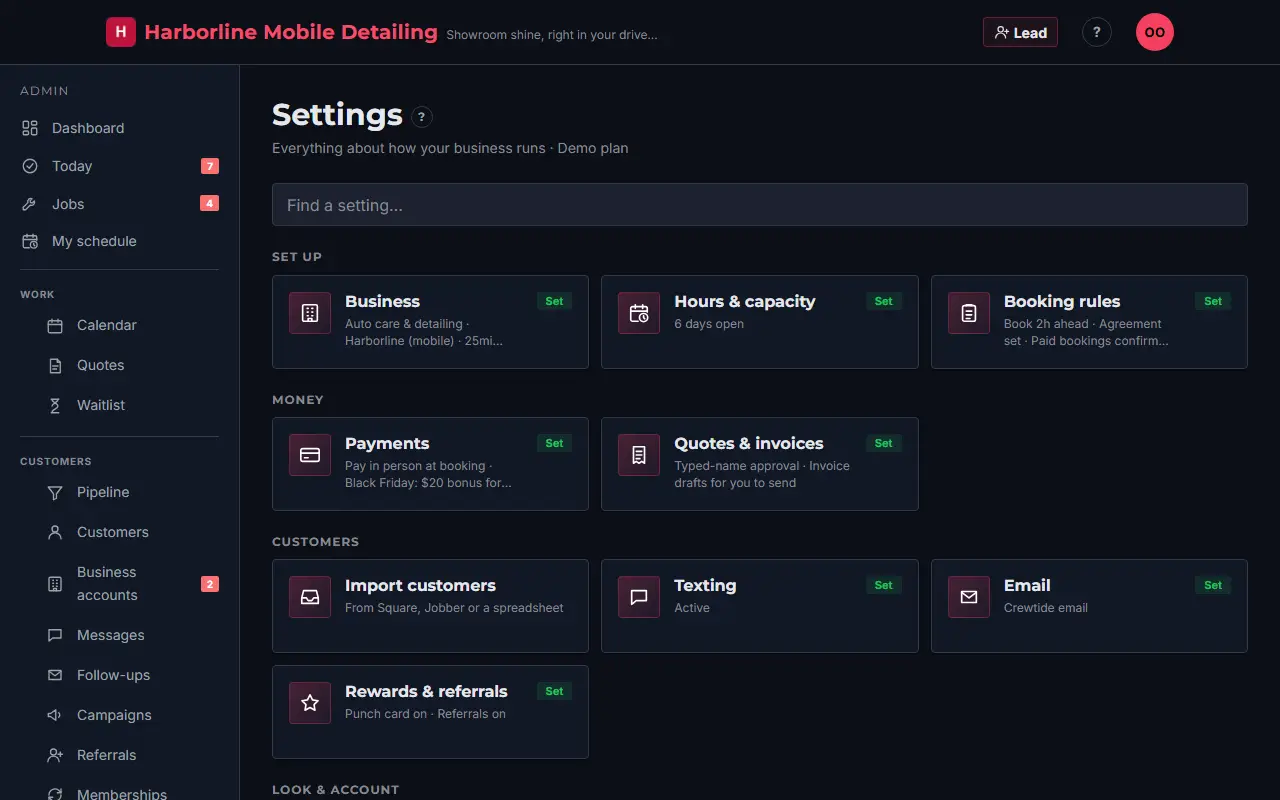
Settings is in areas: Business, Hours & capacity, Booking rules, Payments, Quotes & invoices, Email, Rewards & referrals, Branding, Modules, and Plan, privacy & support. Looking for something? Type a word in “Find a setting” at the top.
What you should see: Each area as a card, with “Set” or “Needs you”.
-
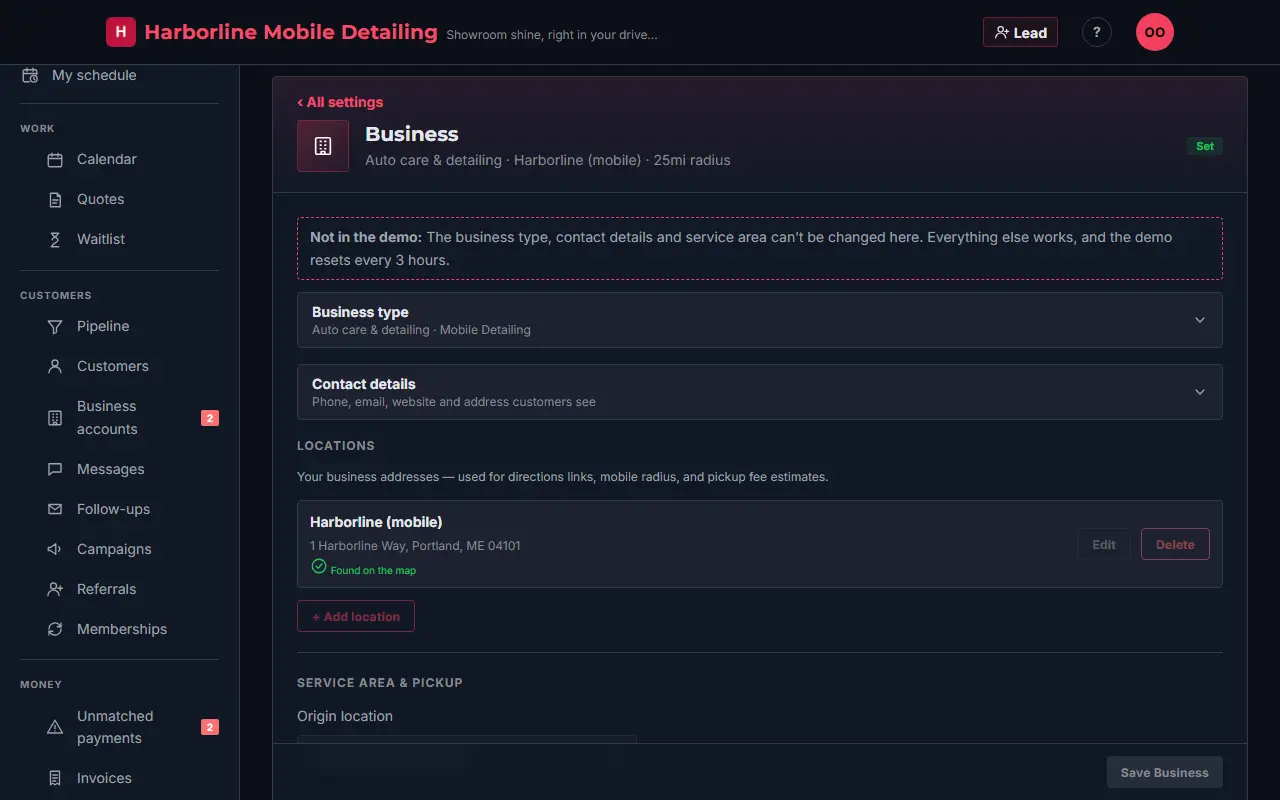
Each area has one Save at its foot, such as “Save Business”. Until you tap it, it says “Changes not saved yet” (or “Tap Save to confirm” for a suggested setup); then “Saved”. “‹ All settings” goes back to the list.
What you should see: The Save button at the bottom of the area.
-
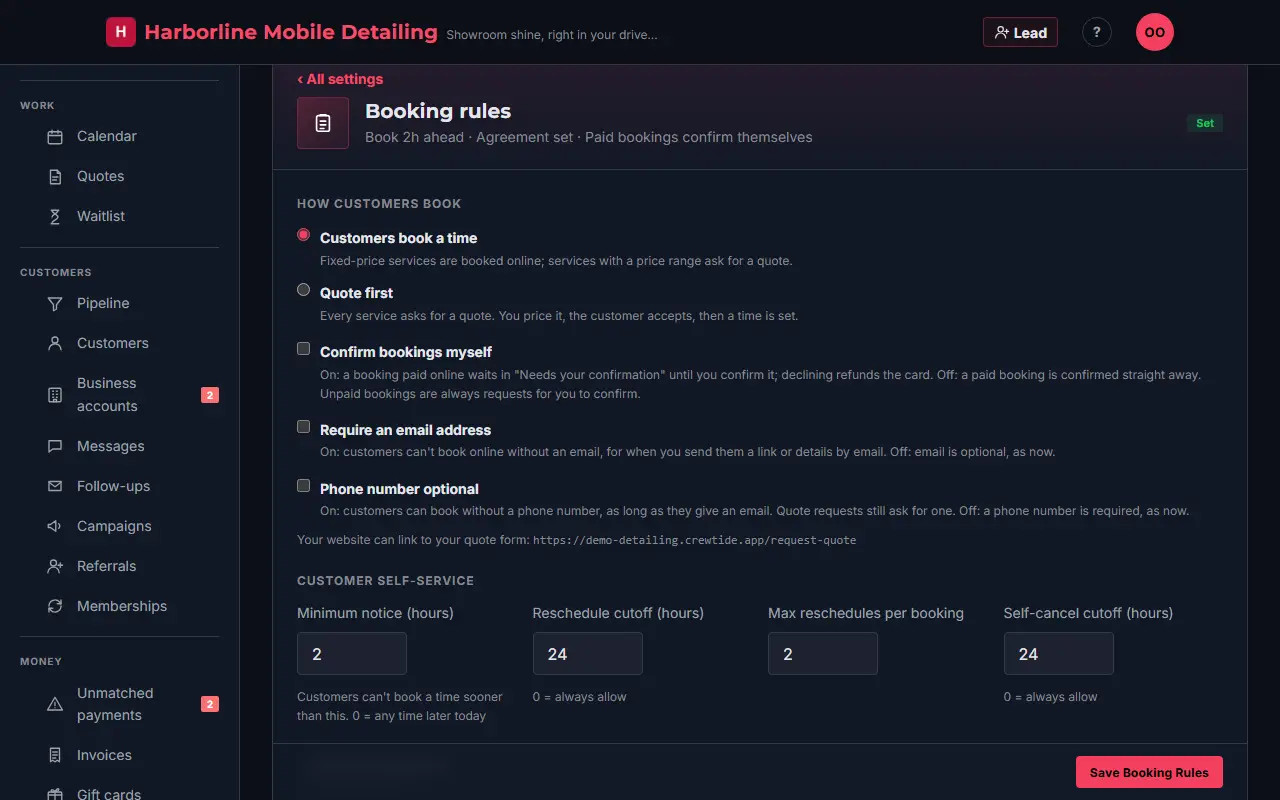
Booking rules: how customers book (a time, or a quote first), whether you confirm bookings yourself, the notice, reschedule and cancel limits, and your booking agreement.
What you should see: The agreement customers read before booking.
-
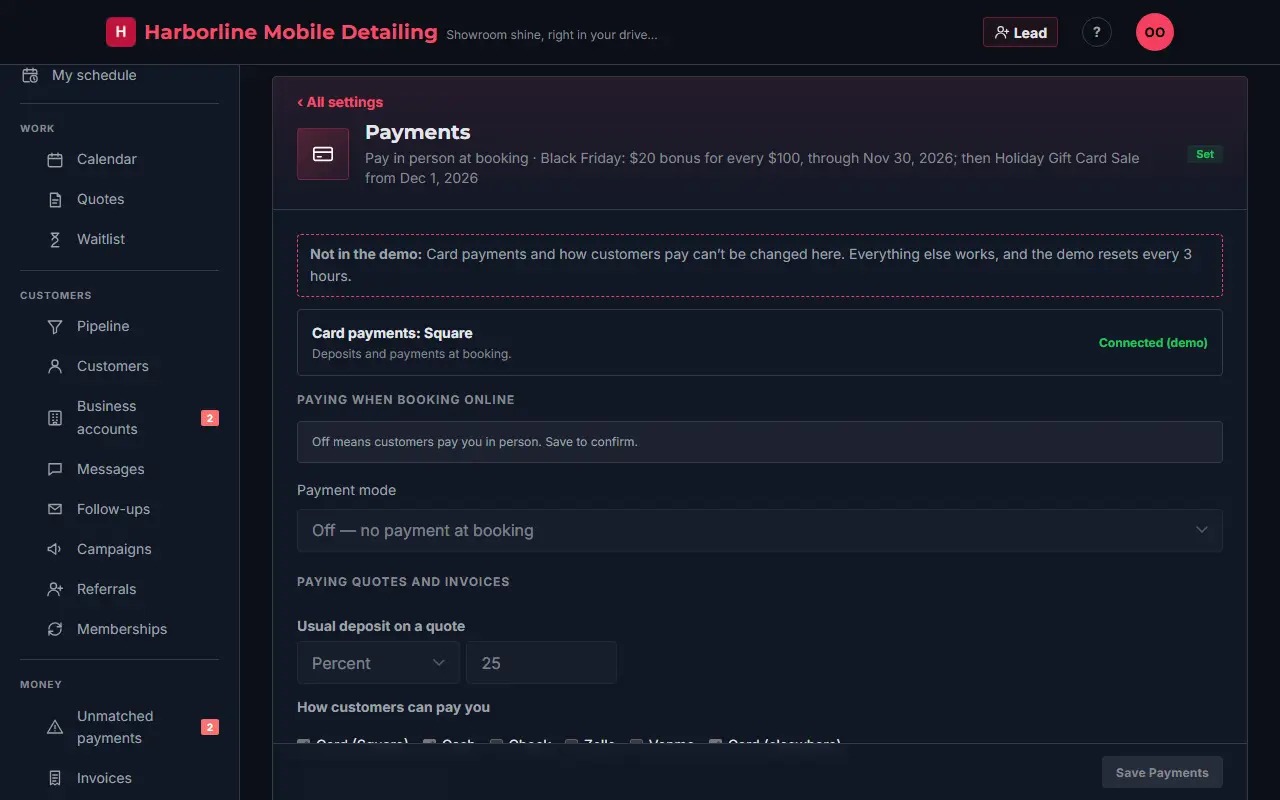
Payments: Square, the deposit when booking online, how customers can pay you and gift card offers, all in one place. Quotes & invoices has numbering, terms and tax.
What you should see: Your payment methods (card, Zelle, check…).
-
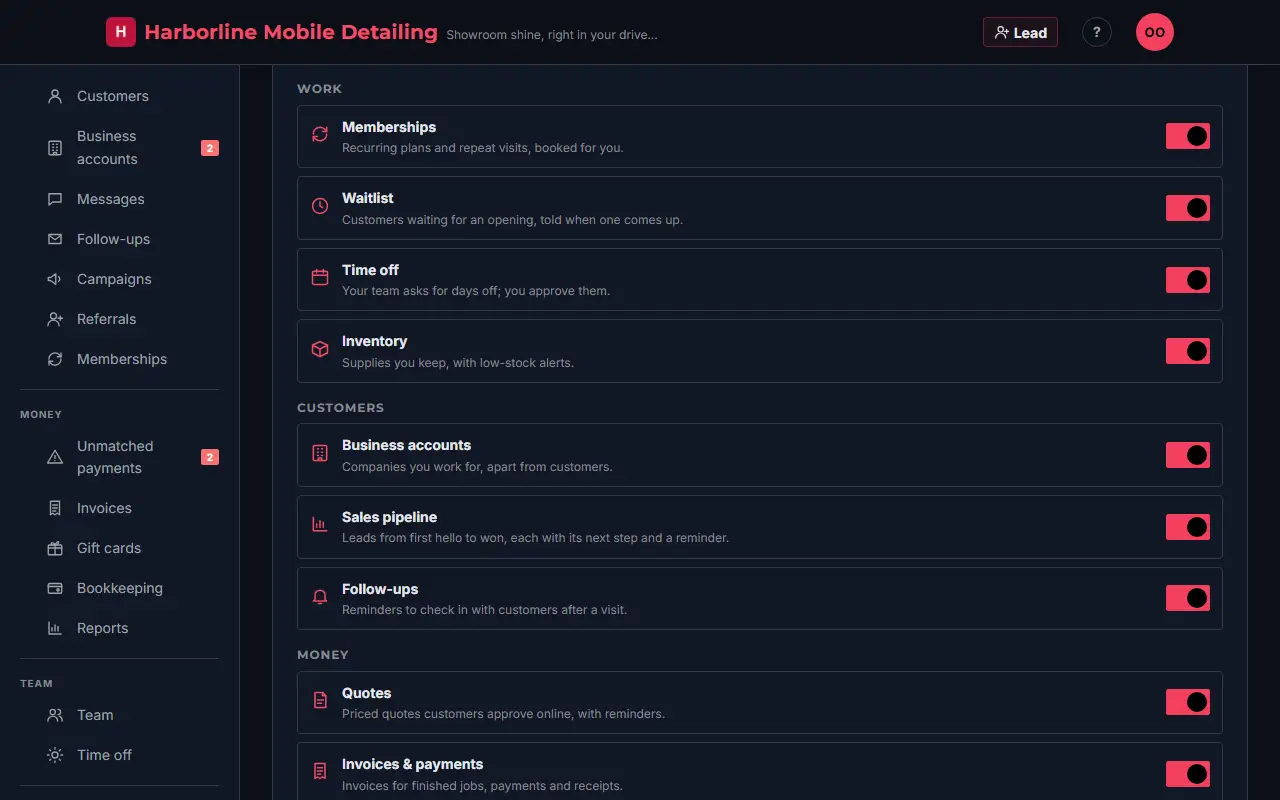
Modules: switch on the parts of Crewtide you use (quotes, invoices, memberships, a waitlist, inventory, gift cards, rewards, referrals, campaigns…). One that’s off leaves your menu, your dashboard and your booking pages, and stops its reminders; nothing is deleted, so switching it back on brings everything back.
What you should see: The modules in groups, each with a switch.
-
On a phone, the bar at the bottom holds your 4 shortcuts. To change them, tap More → Edit shortcuts, or press and hold the bar.
What you should see: Your 4 places in order, with arrows to move them.


Stuck? Email Crewtide Support at contact@crewtide.app, or use Help & Support in the app.