This is the same guide as the “?” in Crewtide. Everything here is in the admin area: on a computer it’s the menu on the left, and on a phone it’s the menu button. The screenshots are from a demo business.
-
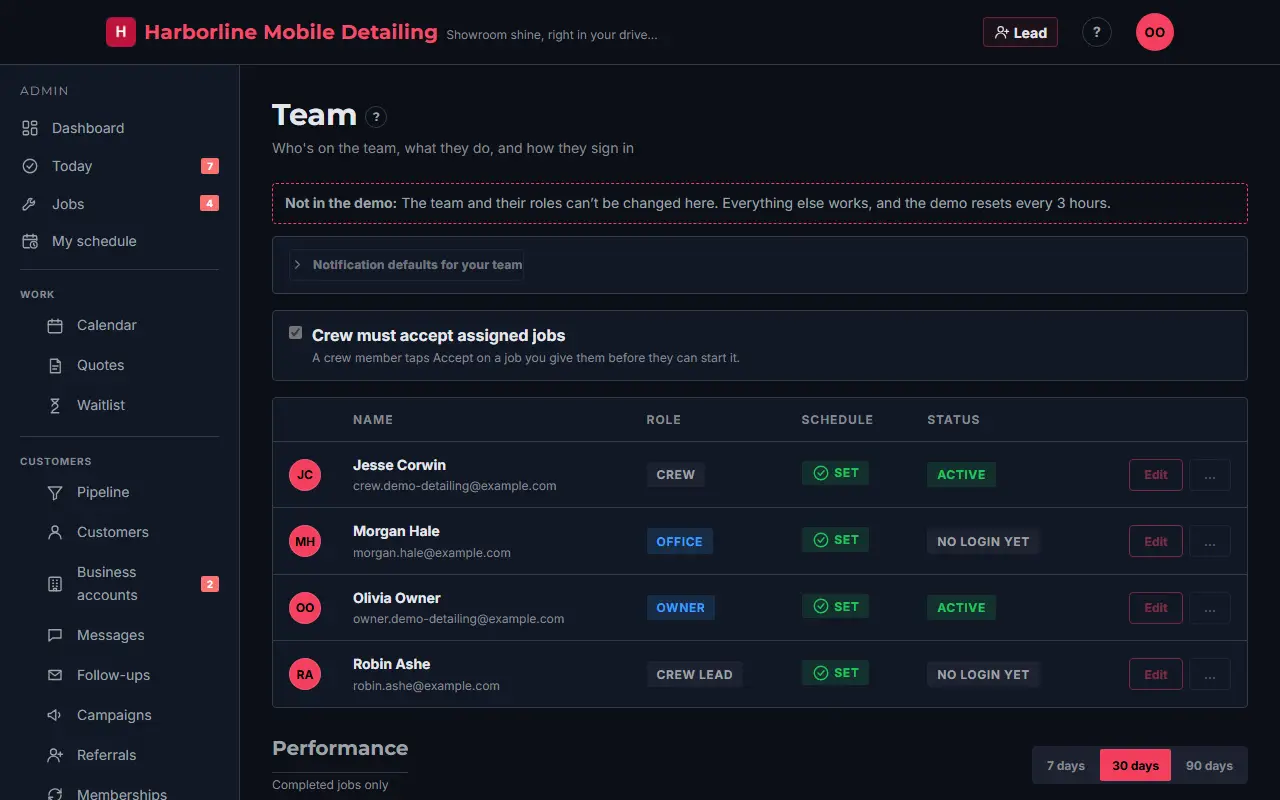
Team lists everyone with their role. “+ Add Employee” sends an invite.
What you should see: Each person’s role, and “Invited” until they accept.
-
Edit someone for their weekly hours, which services they do, and what they can do (their Access, in “Team access: who can do what”).
What you should see: Their schedule, used for open times and assigning.
-
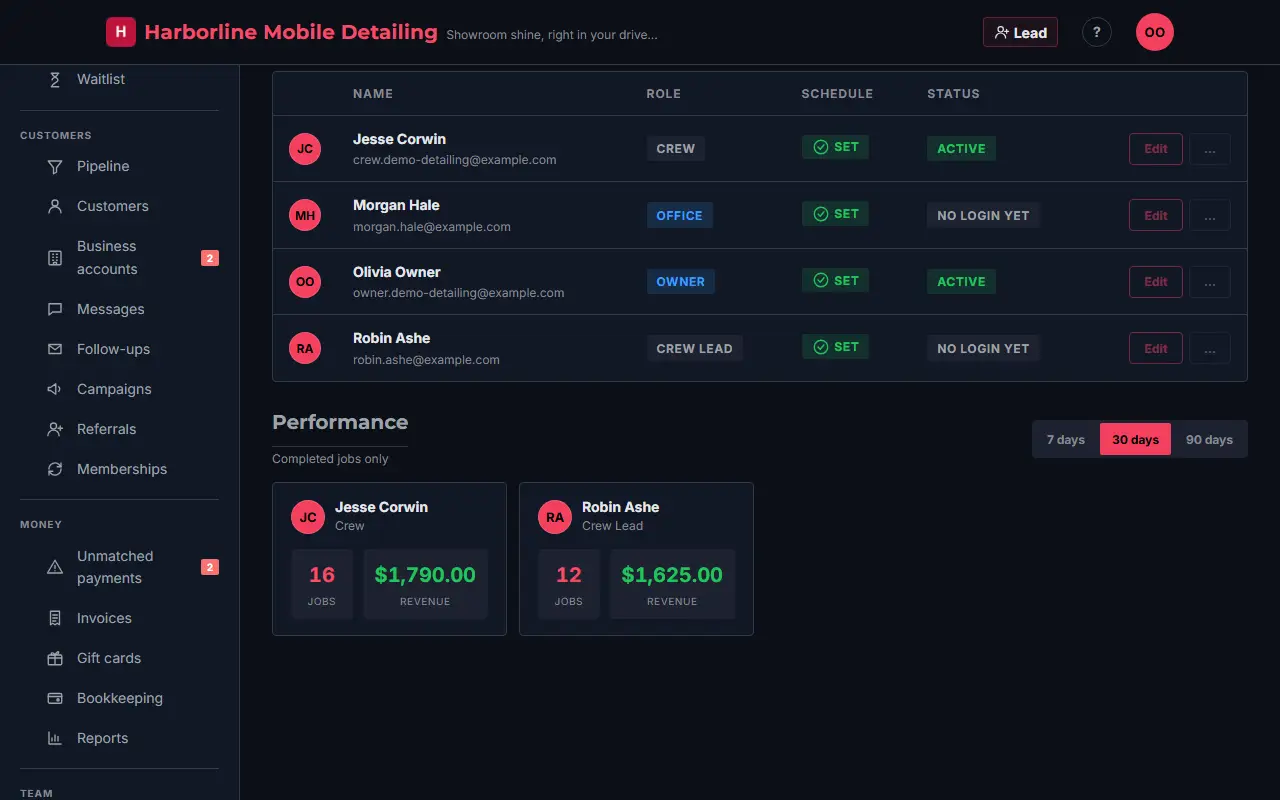
“Crew must accept assigned jobs”: on, a crew member accepts each job before starting it; off, a job you give is ready to start.
What you should see: The switch and what it means for your crew.
-
Crewtide’s agreement for your business: any owner on your Team can accept it for the company, and once one has, the others aren’t asked. An admin who isn’t an owner signs only if you ask Crewtide Support to name them.
What you should see: Everyone else sees “Waiting for …” with the owners’ names until one accepts.


Stuck? Email Crewtide Support at contact@crewtide.app, or use Help & Support in the app.
Next: Share your booking link · All guides