Bookings and giving them to your crew
Add a booking yourself, confirm requests, and assign who does it.
This is the same guide as the “?” in Crewtide. Everything here is in the admin area: on a computer it’s the menu on the left, and on a phone it’s the menu button. The screenshots are from a demo business.
-
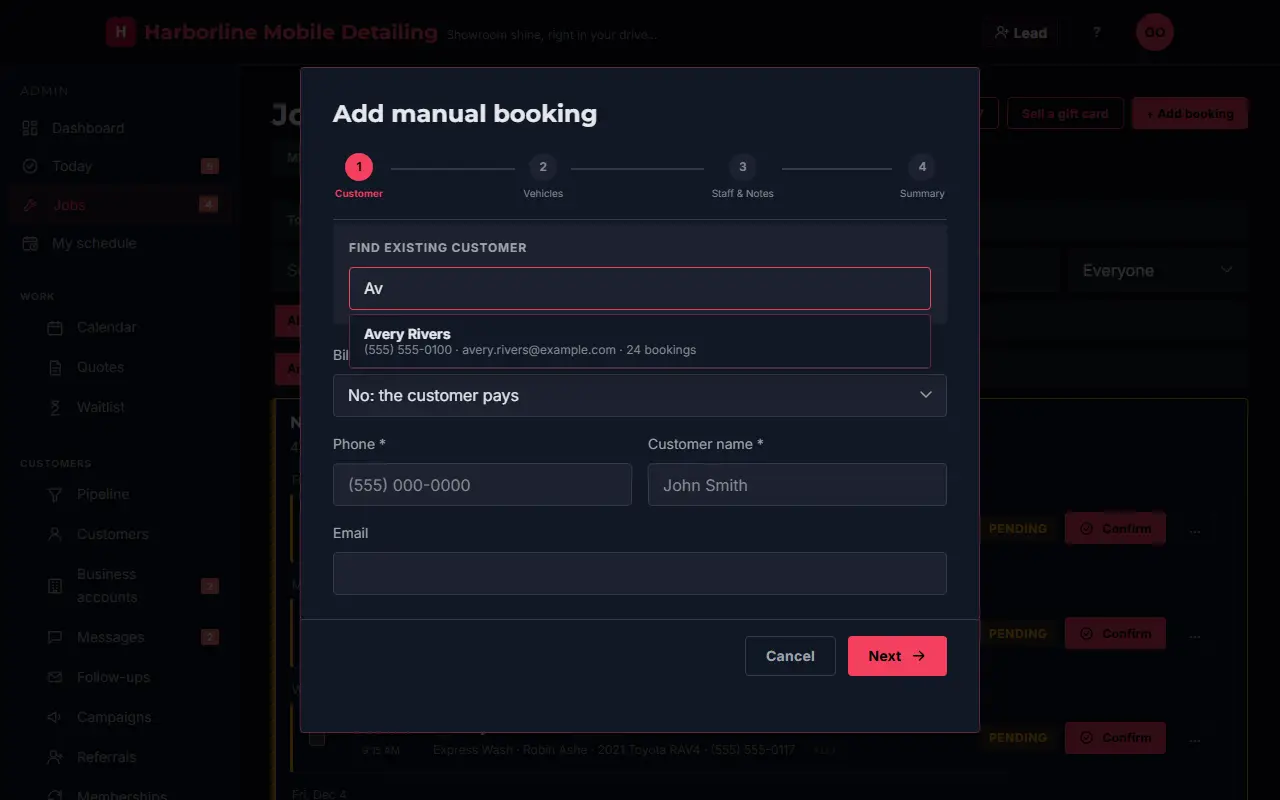
Jobs → “+ Add booking”. Search the customer by name, phone or email; for someone new, type their details.
What you should see: A returning customer shows their visits and saved items.
-
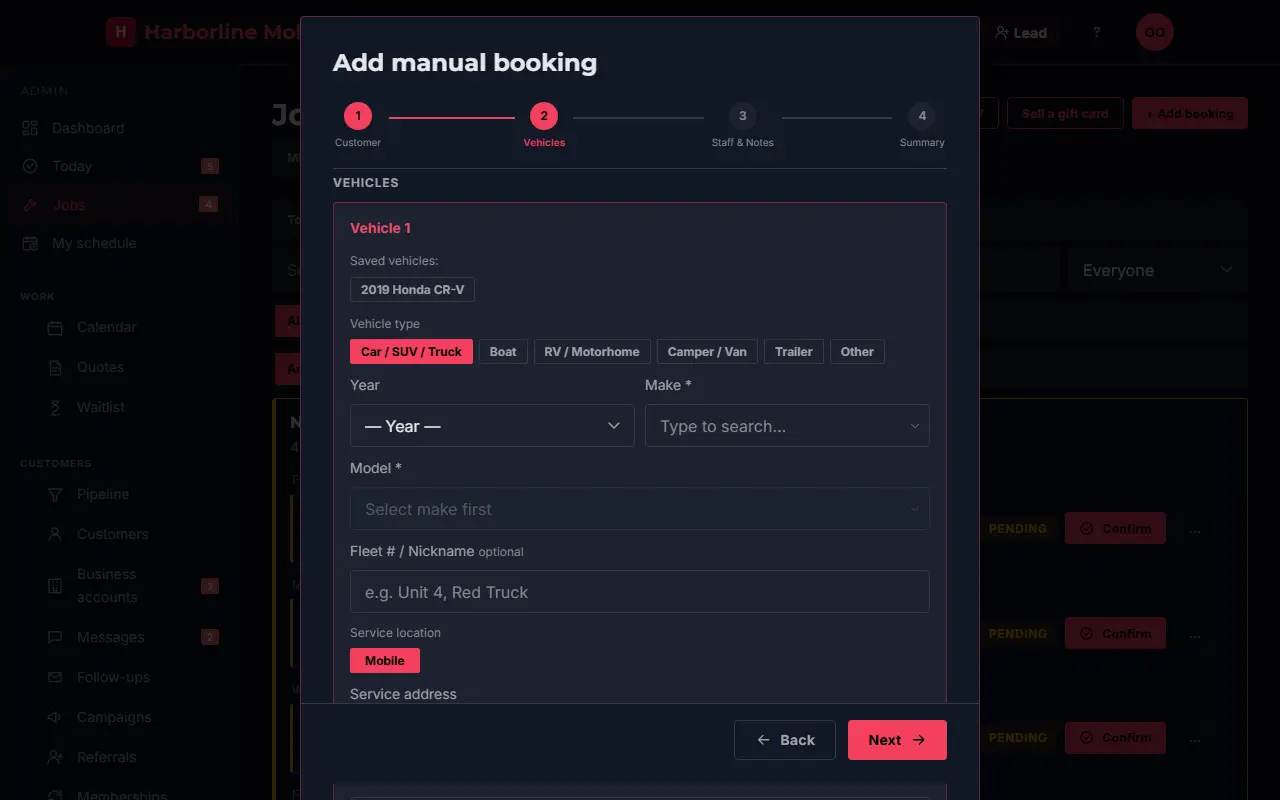
Pick the item, the service and any add-ons, then “Next”. A returning customer’s last address fills in for an on-site job. For a Starting price, Price range or Free quote service, type the “Price for this booking” you agreed with the customer; change it later in the booking’s details. A service whose length varies asks for the “Job length” too, from 15 minutes to 24 hours, before you can go on.
What you should see: The service list and the price adding up at the bottom.
-
Pick a day and one of the open times (or type any time), and who does it.
What you should see: Open times as buttons; a warning if someone is busy or off then.
-
Requests from your booking page wait in “Needs your confirmation”. Open one and Confirm; Crewtide suggests who’s free.
What you should see: “Confirmed · assigned to … · confirmation on its way to the customer” at the bottom of the screen.
-
Jobs shows everyone’s jobs; switch to Mine at the top for the ones you do yourself, with your clock, photos and payments. Jobs opens on the side you used last.
What you should see: Everyone and Mine at the top of Jobs.


Stuck? Email Crewtide Support at contact@crewtide.app, or use Help & Support in the app.