Bookkeeping: money in and out
What came in and went out, your expenses and tips, Square payments, and unmatched card payments.
This is the same guide as the “?” in Crewtide. Everything here is in the admin area: on a computer it’s the menu on the left, and on a phone it’s the menu button. The screenshots are from a demo business.
-
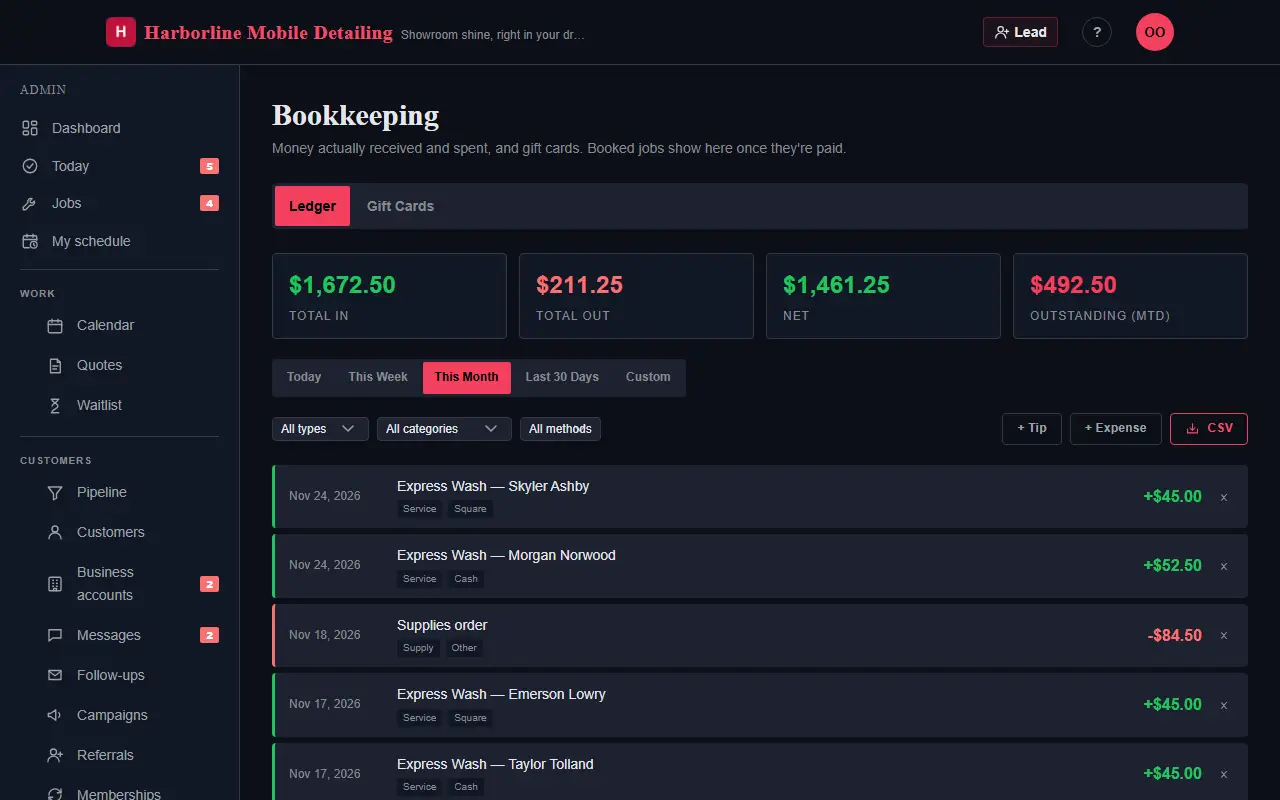
Bookkeeping → Ledger: money actually received and spent. A job shows here once it’s paid. Pick Today, This Week, This Month, Last 30 Days or Custom.
What you should see: Total In, Total Out, Net and Outstanding (MTD) at the top.
-
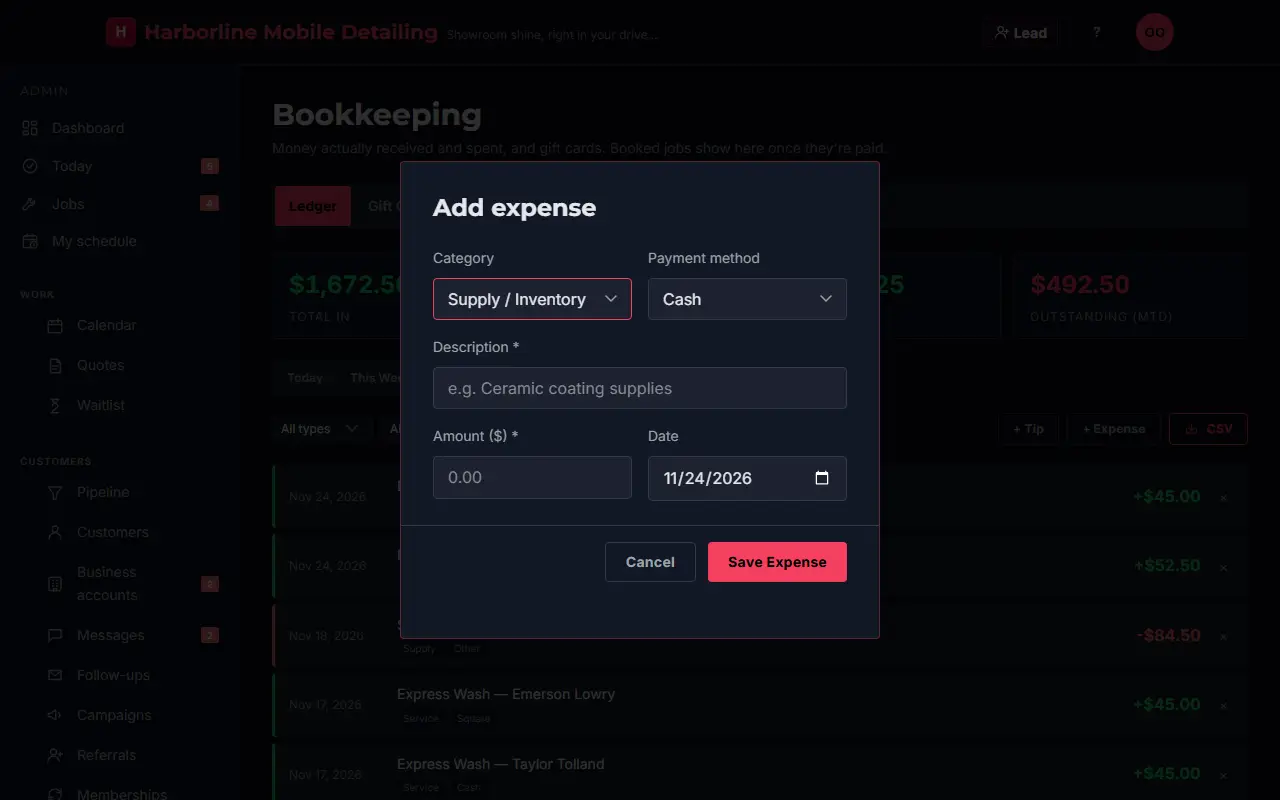
“+ Expense” and “+ Tip” add your own entries; “CSV” downloads the list for your accountant. A restock in Inventory with its cost adds a supply expense here by itself.
What you should see: Each entry with its date and amount.
-
Square Import (for a business that takes cards through Square; on or off in Settings → Modules, under Bookkeeping): “Fetch Transactions” for a period, then Import or Skip each one. A payment with no job gets “Link to Job” or “No Booking Needed”.
What you should see: Square’s payments for the period, ready to bring in.
-
“Unmatched payments” shows in the menu (and on your Dashboard) only when a customer paid by card but the booking or gift card didn’t save. “Make the booking” (or “Sell the card”) and tap “I’ve booked it”, or refund it. Either way they won’t be charged again.
What you should see: “Nothing to sort out” once each one is done.
-
For a rental Square charged but never confirmed, “It was charged: keep the rental” asks for the payment’s ID from Square (Square Dashboard → Transactions → the payment). Crewtide checks it with Square: it must be completed, for exactly this rental’s amount, not refunded, and this rental’s own. If Crewtide can’t confirm that, send it to Crewtide Support from Help & Support.
What you should see: “Paste the payment ID from Square”, then the rental marked paid.


Stuck? Email Crewtide Support at contact@crewtide.app, or use Help & Support in the app.