Gift card offers through the year
Bonus offers for Black Friday, Christmas, Valentine’s Day and more, set up ahead, with holiday looks, on your gift card page and your website.
This is the same guide as the “?” in Crewtide. Everything here is in the admin area: on a computer it’s the menu on the left, and on a phone it’s the menu button. The screenshots are from a demo business.
-
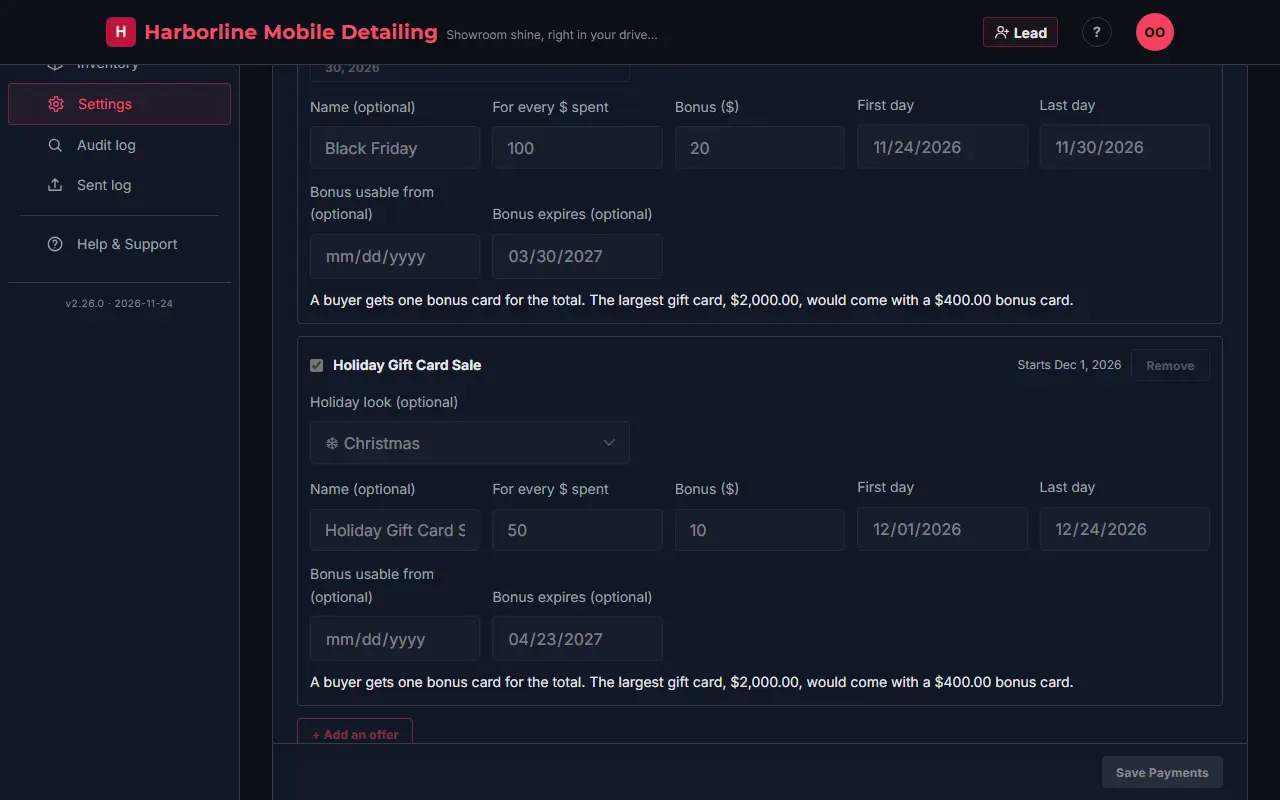
Settings → Payments, then Gift cards → Bonus offers. Each offer is a card: tick it to switch it on, see its name, or tap Remove. “+ Add an offer” adds another.
What you should see: Your offers listed, each with “Running now”, “Starts …”, “Ended” or “Off”.
-
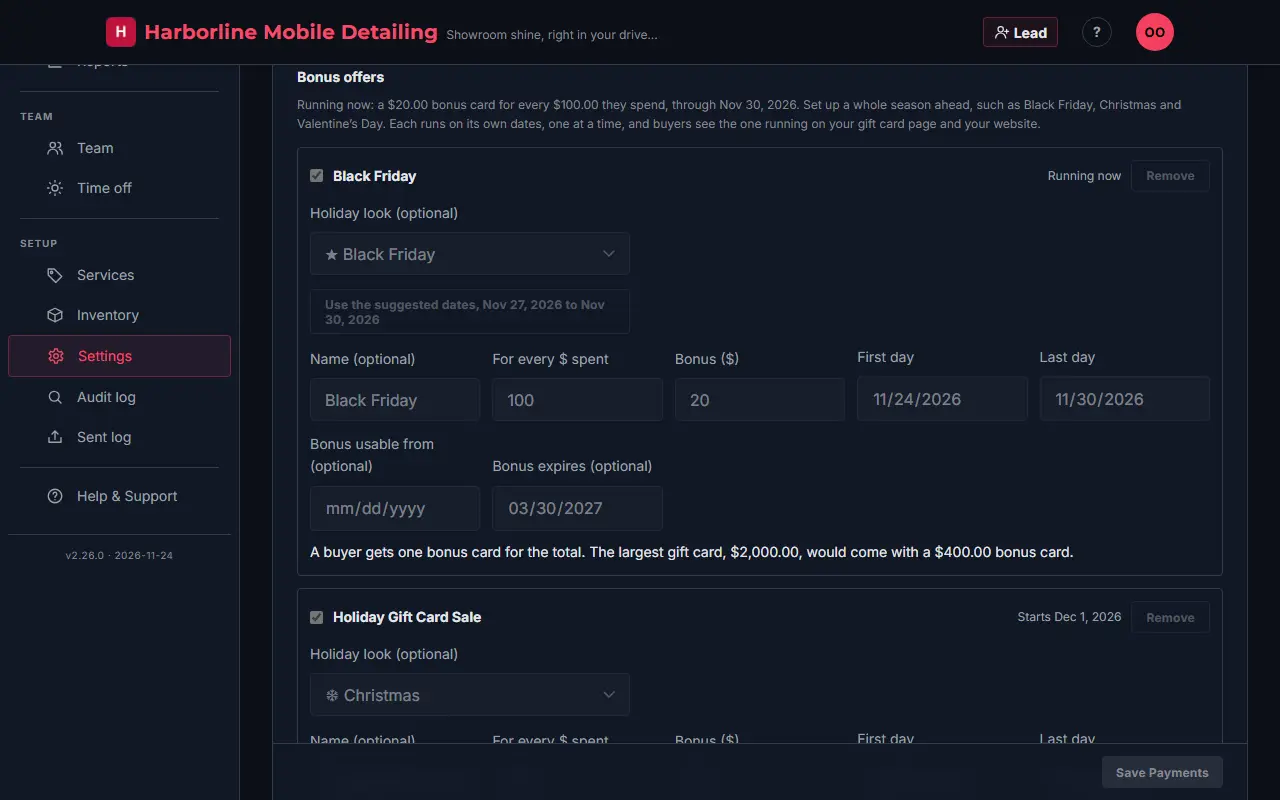
Fill in “For every ($) they spend”, “Bonus ($)”, “First day” and “Last day”. “Campaign name”, “Bonus usable from” and “Bonus expires” are optional. Then tap “Save Payments”.
What you should see: A line saying what the largest gift card’s bonus would be, then “Saved”.
-
“Holiday look” (optional): pick Christmas, Black Friday, Valentine’s Day… It fills in the name and dates; if you’ve typed others, tap “Use the suggested dates”. The look adds the holiday’s colors and symbol to your gift card page, the gift email and the printed card, on top of your own branding.
What you should see: The holiday’s symbol in the list, and the suggested dates.
-
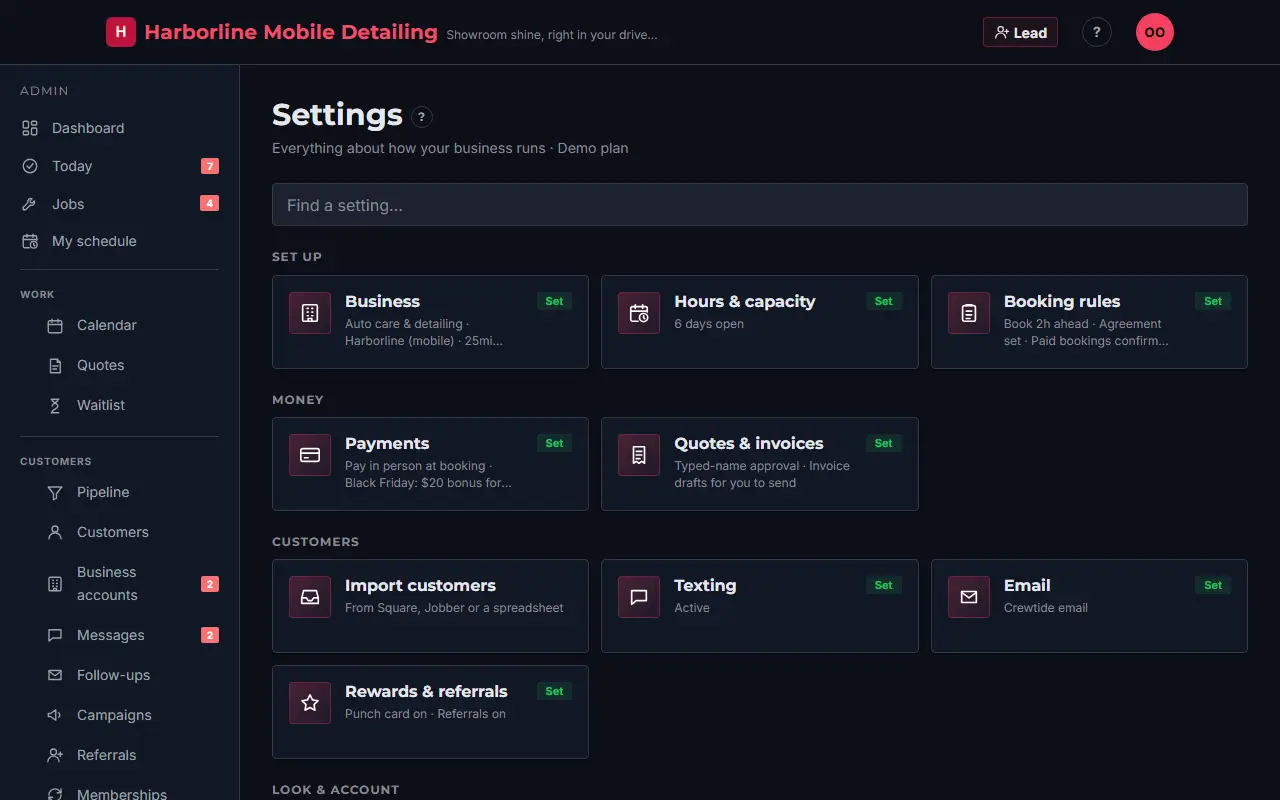
Set up a whole season ahead: one offer per holiday, each on its own dates. Only one offer can run on any day: if two switched-on offers overlap, Save says so and nothing is saved until you change the dates or switch one off.
What you should see: The Payments card in Settings saying what’s running and what’s next.
-
Buyers see the offer that’s running on your gift card page, with how much bonus they’ll get. A bonus card has its own code and isn’t counted as income.
What you should see: The offer, in its holiday look, above the amounts.
-
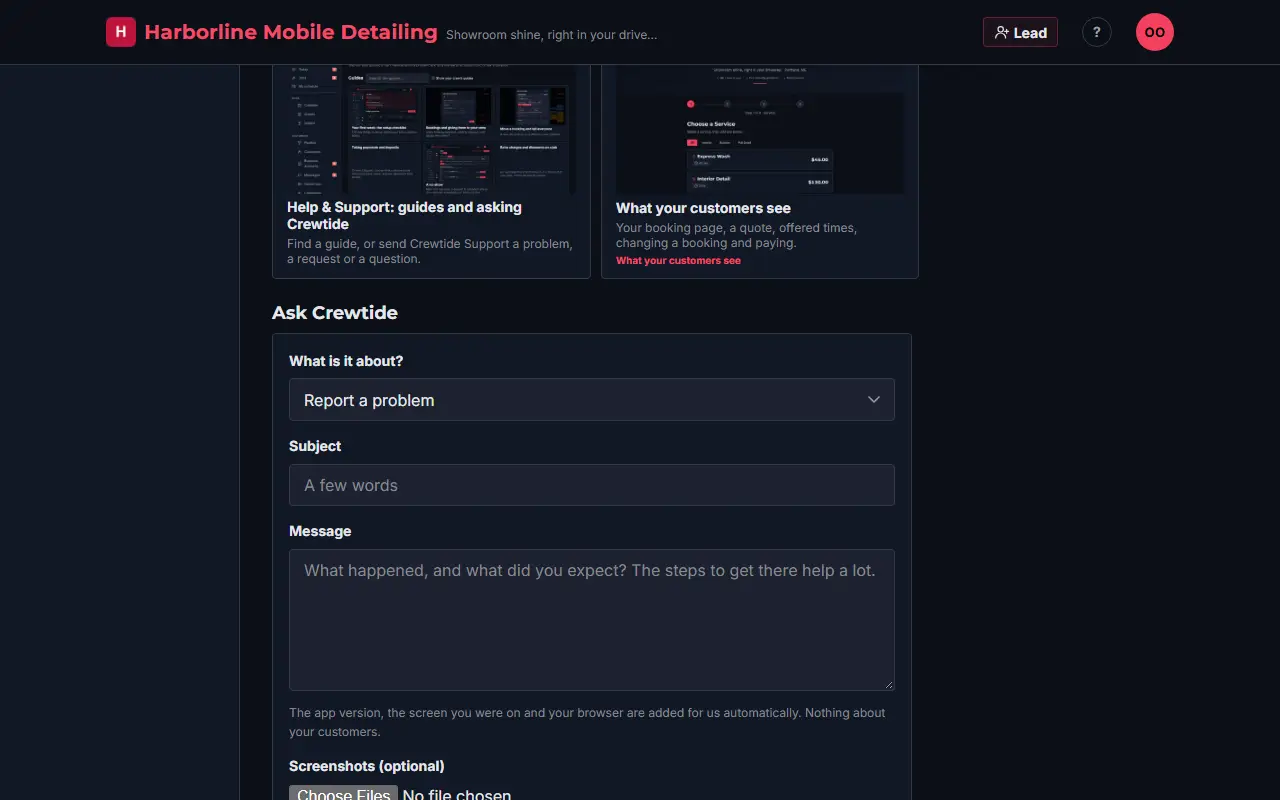
Your own website can show it too: in Help & Support, under Ask Crewtide, choose “Question / other” and ask Crewtide Support to add your gift card offer to your website. Once it’s there, your website shows the offer that’s running, or the next one coming, and hides it when there’s none, by itself. A change you save shows there within about 5 minutes.
What you should see: The Ask Crewtide form.


Stuck? Email Crewtide Support at contact@crewtide.app, or use Help & Support in the app.