Services and add-ons
What you sell, its price and length, and the supplies each job uses.
This is the same guide as the “?” in Crewtide. Everything here is in the admin area: on a computer it’s the menu on the left, and on a phone it’s the menu button. The screenshots are from a demo business.
-
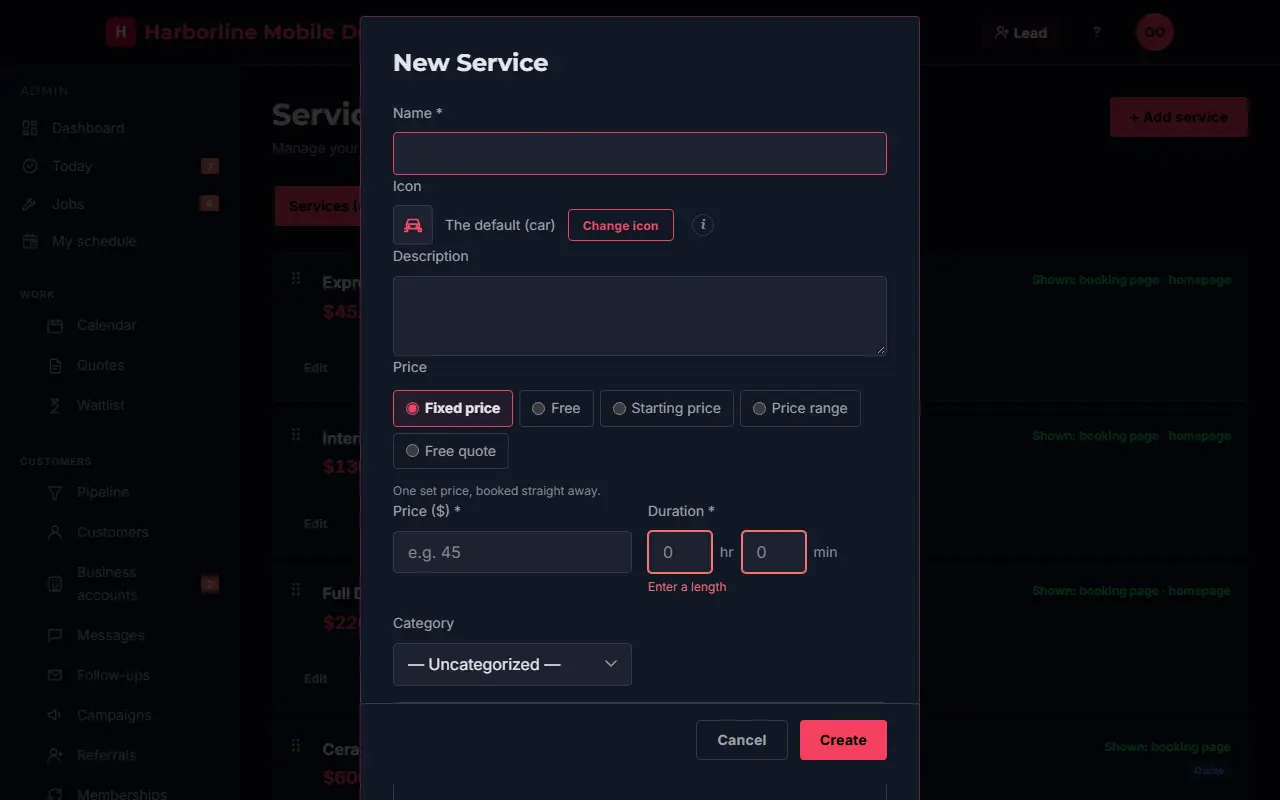
Services → “+ Add service” (or Add-ons → “+ Add add-on”): its name, description, Pricing type (Fixed price, Starting price, Price range, or Free quote with no price shown), the price and how long it takes (15 minutes to 24 hours; a new service starts blank). For custom work with a Starting price, Price range or Free quote, tick “Length varies (set per job)”: your booking page says “Length varies”, and you enter each job’s length when you book, quote or schedule it. When you book one of these services yourself, you set the price agreed for that booking.
What you should see: The service form.
-
“Supplies used per job”: what each job uses from Inventory; it comes off by itself when the job is done. Under Visibility and homepage: “Staff only (hide from the booking page)” keeps a service for your team to book, quote or add to a membership, out of your booking page, homepage and Book Again; “Mark as Coming Soon”; and “Feature on homepage”.
What you should see: The supplies listed on the service.
-
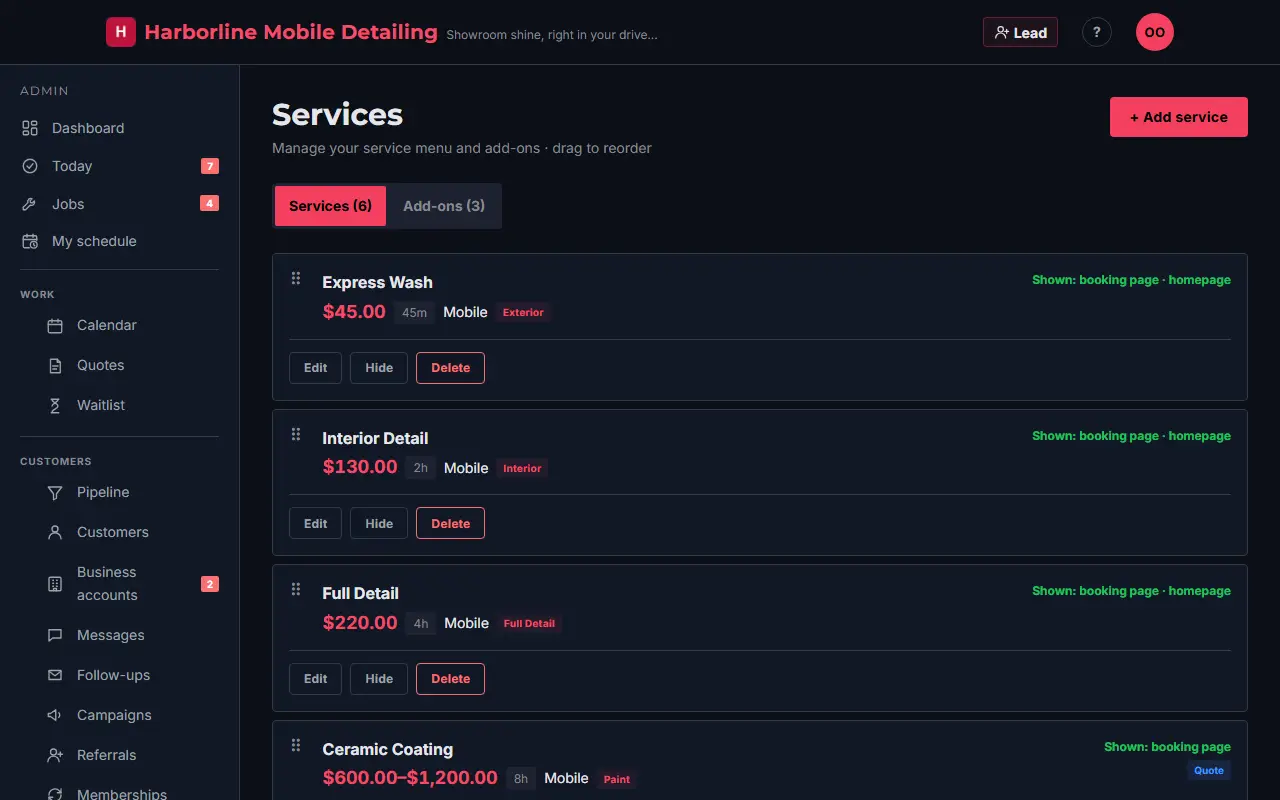
Drag services to reorder them. Each has Edit, Hide (or Show) and Delete.
What you should see: Your services in the order customers see them.


Stuck? Email Crewtide Support at contact@crewtide.app, or use Help & Support in the app.