Share my info: your own QR code
People scan it to send their details, and the lead is yours.
This is the same guide as the “?” in Crewtide. Everything here is in the admin area: on a computer it’s the menu on the left, and on a phone it’s the menu button. The screenshots are from a demo business.
-
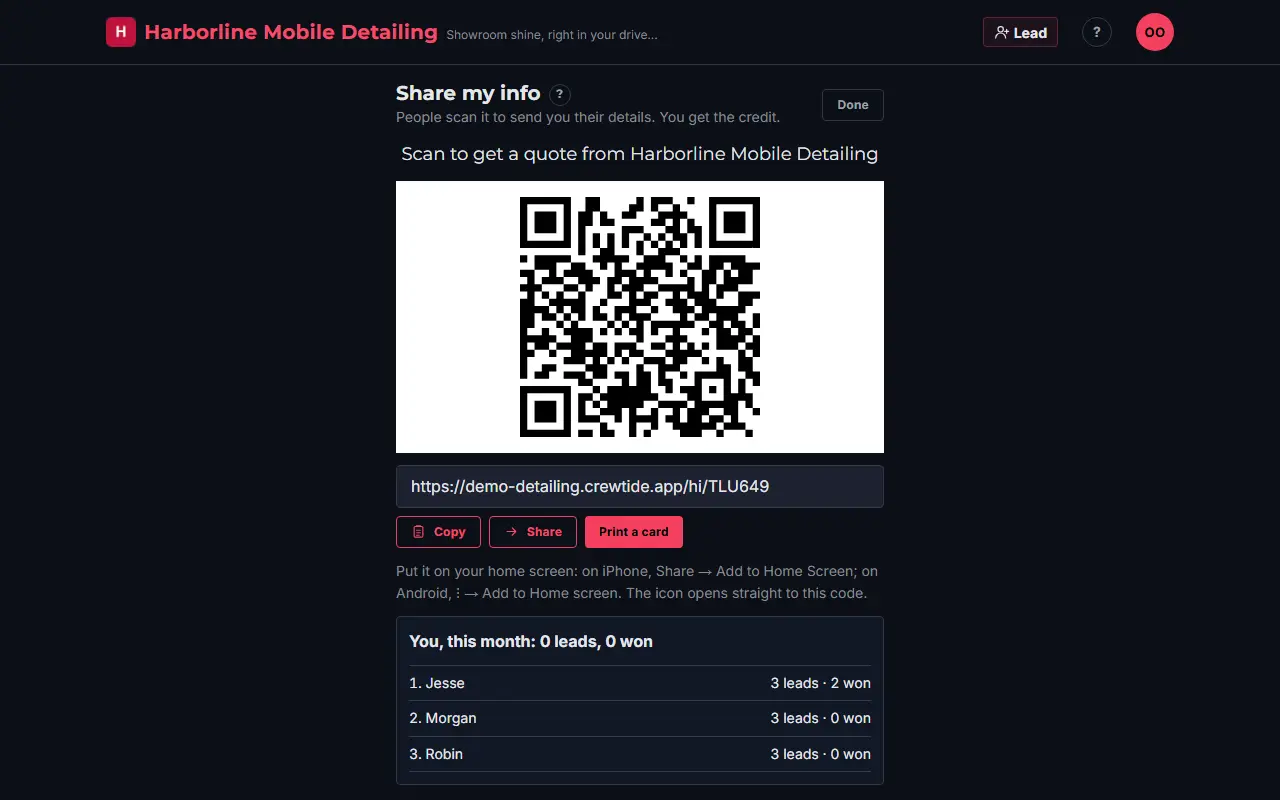
Tap “Lead” at the top: in the “Get a lead” card, “QR code” shows your own code full screen with “Scan to leave your details”, and “Text / Share” or “Copy” send your link. “Print cards or reset your code” (or “Share my info” on the Pipeline) opens your Share my info page, where you can “Print a card” that says to ask for you by first name.
What you should see: “Scan to leave your details”, your code, and your first name with your business.
-
Put it on your phone’s home screen: on iPhone, Share → Add to Home Screen; on Android, ⋮ → Add to Home screen. The icon opens straight to your code.
What you should see: The icon on your home screen.
-
Someone scans it and sends their name, phone or email, and what they need, with a box for offers by email. They can save your business’s contact card and book right away.
What you should see: Their lead in the Pipeline, from “Share my info”, credited to you, with a call today.
-
Your tally shows this month’s leads and wins, with the team’s leaderboard and any bonus per won lead your business pays (Pipeline settings → Reward for bringing in leads).
What you should see: “This month: … leads, … won”.
-
Lost a card, or want a fresh code? “Reset my code”: the old code and any card printed with it stop working, so print new ones.
What you should see: “New code ready. Print new cards.”

Stuck? Email Crewtide Support at contact@crewtide.app, or use Help & Support in the app.